The conversation list now follows the way you read it
Onevium 1.2.1 makes the conversation list configurable without turning it into a dashboard of permanent controls. Conversation markers, channel or scheduled-task sources, and activity states can sit to the left or right of the title. Three presets provide a quick starting point, and each position remains independently adjustable.
Sidebar text size is separate from message and code text. You can also choose an initial sidebar width, while a width you drag manually remains the remembered choice.
The animation uses synthetic conversations rendered by the real session-row components. It shows the same five conversations in three layouts, so the difference comes from presentation preferences rather than different data.
- Recognize work quickly — use an emoji, a color, or a reusable label as the primary conversation marker.
- Keep status visible — running, completed, waiting, and error states retain distinct visual meaning across layouts.
- Protect useful titles — rename a conversation yourself or ask AI for an editable suggestion; manually named conversations are not silently overwritten.

The navigation menu is yours to arrange
Right-click the navigation menu, or open Customize from Explore, and the menu turns into a short editor in place. Each entry has a visibility checkbox and a drag handle, so you can hide what a given machine never uses and move what you open daily to the top. Arrow keys work the same as dragging, and Escape closes the editor.
Hiding an entry does not remove the feature. Hidden destinations collect under Explore, which keeps them one hover away instead of gone. New session keeps its first position so the most common action never moves, and the order you choose is saved per install rather than per conversation.
- Show only what you use — turn off destinations this machine does not need without uninstalling anything.
- Put frequent work first — drag or use the arrow keys to move an entry up the menu.
- Nothing disappears — hidden destinations remain available under Explore, along with Customize itself.

Voice correction can learn the words you actually use
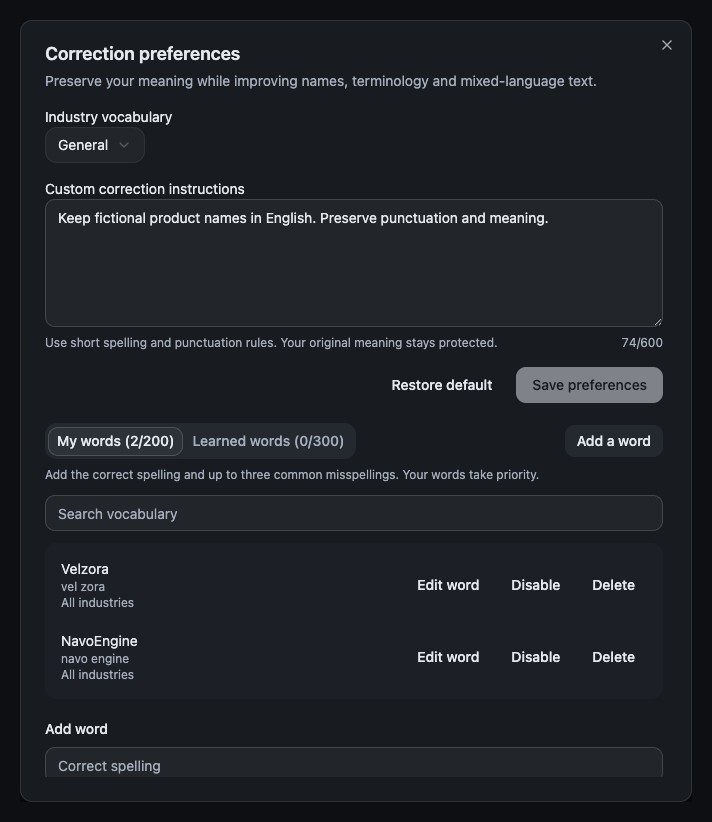
On-device speech recognition remains the starting point. When optional AI transcript correction is enabled, 1.2.1 adds short correction rules, industry scope, manually maintained words, and learned terminology derived from clear edits you make before sending.
Learning does not add another model request when you send a message. A later correction can use a small, bounded set of useful edits with the same configured model. Ambiguous one-character changes, numbers, negation, and broad rewrites are excluded from automatic learning so a casual edit is less likely to become a standing vocabulary rule.
Dictation history can distinguish the original transcript, AI-corrected text, and the final text you adopted. Recognition audio remains on the device. If AI correction is enabled, the text transcript—not the recording—is processed by the provider you configured.
New conversations offer a useful next step without taking over the workspace
An empty conversation can now show a compact set of official release, documentation, and blog cards between the welcome message and the composer. The cards are cached, back off after a failed request, and disappear once the conversation has real history. They are starting points, not advertisements that remain in an active task.
A separate Help entry opens official documentation and focused shortcuts for providers, keyboard settings, and appearance. These shortcuts open the relevant part of the existing settings overlay and preserve the conversation or split view underneath.
Code returned by a successful Read action is also easier to inspect. The reading surface separates file name, language, and line range, uses the configured code size and theme-aware syntax colors, preserves exact copied text, and bounds very long excerpts instead of letting one result dominate the conversation.
Small recovery details make everyday switching safer
A draft in a new conversation now survives navigation instead of disappearing when you briefly open another part of the app. The scroll-to-bottom control indicates when a reply is still streaming, and the session hover card includes relative last-active time without permanently taking title space.
Startup failures now surface a recoverable error instead of leaving a black window. Daily briefing generation keeps a valid cached overview when a refresh fails.
Adjust the browser without leaving your work
The built-in browser now offers page zoom, device viewport controls, and in-place cookie import from its toolbar menu. When a viewport is larger than the panel, scroll horizontally or vertically to reach its edges.
Try it: open the built-in browser and use the menu beside the address bar to change zoom or device size. To reuse a sign-in state, open cookie import from the same menu and check the target browser profile before importing.
Navigate files, preview media, and paste long text
File views and review previews gain a segmented path bar: open directories, pick files across folders, or copy the full path. Images support zoom and fit-to-window, SVGs offer source and preview modes, and audio uses dedicated playback controls with clearer file-type icons.
Long pasted logs or reference material automatically become text attachments. Try it: paste a long passage into the composer, check the attachment, and add your request. In a file view, click a directory in the path bar to navigate to another file.
See built-in skills, project rules, and subtask details
The slash menu can now show Claude Code skills actually available in the current runtime. The right-hand skills panel lists built-in skills separately from project skills as read-only entries. New /list-agents and /autocompact entries appear when supported by the runtime.
When a project has no CLAUDE.md, the rules panel can display AGENTS.md. Subtask panels also show the model and reasoning effort used by the task.
Try it: type / to find a skill or command, open the skills panel to check its source, and inspect a subtask to see its model information.
Read channel conversations and task progress more easily
Channel conversation titles can independently show or hide the sender and group or contact name. Tabbed organization settings make title, marker, and layout options easier to find. Navigation entries can be dragged from the whole row while customizing.
Conversation headers, tool-group expansion, and quiet notifications have also been refined. Tool groups expand independently, dictation waveforms follow speech more closely, and switching conversations during dictation preserves the transcript.
Try it: open conversation organization and sidebar presentation settings to adjust channel titles. Right-click the upper-left navigation and choose Customize to reorder entries in place, then finish editing.
SDK update and provider improvements
Claude Agent SDK moves from 0.3.259 to 0.3.278, with Claude Code 2.1.278. User-level skills remain available in provider sessions.
Supported provider endpoints can explicitly declare 1M context support. Try it: edit the provider configuration and enable the option only if the endpoint and model support it, together with the global context setting. This does not expand the window of an unsupported model.
After the stable release, upgrade without clearing your data
These steps apply after the stable release is published: finish running work and quit Onevium before replacing the application. Use the confirmed release link at the top of this article to choose the installer for your operating system and architecture. The official release page’s Assets list is the source of truth for available files.
Keep the same operating-system account and Onevium data directory. Startup migrates existing conversations and settings, and creates a local upgrade-backups snapshot when the database needs a schema upgrade. Do not delete application data as part of an ordinary update, and do not assume that opening the newer database in an older version is lossless.
After updating, reopen one familiar project. Check its conversation markers and titles, switch the session layout once, dictate a short sentence if you use voice input, and open a recent code-reading result. Those checks exercise the visible changes without requiring a new production task.